INK STAMPEDE
HP 912 912XL PRO-DRIP BLACK & COLOUR INK REFILL KIT WITH 350ml INK
HP 912 912XL PRO-DRIP BLACK & COLOUR INK REFILL KIT WITH 350ml INK
Couldn't load pickup availability
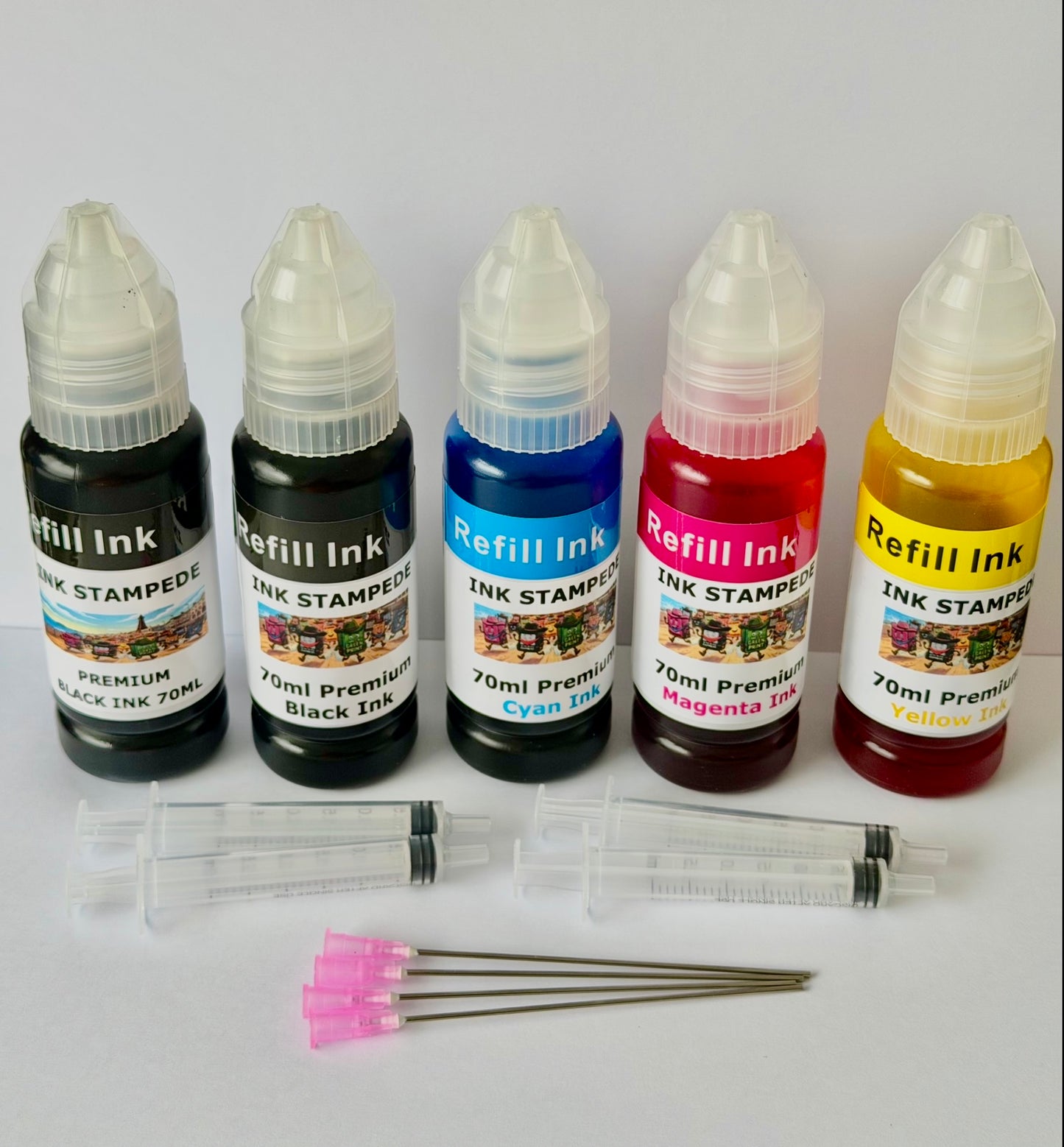
The HP912 912XL Ink Stampede ProDrip Refilling Kit Includes the following items:
Gloves
4 Syringes & Needles -
140ml Black Dye Ink - 70ml each Cyan, Magenta & Yellow
Free UK Delivery Via Royal Mail Tracked 48 Service
FOR HP OFFICEJET PRO 8020 8022 8023 8024 8025 8026 8028 8030 8035 HP OFFICEJET 8010 8012 8013 8014 8015 8017 8018 8022
REFILLING INSTRUCTIONS
The HP 912 uses an internal sponge chamber and an exposed bottom outlet port, making it well-suited for the Ink Stampede ProDrip Refilling Method.
Here is a step-by-step guide to refilling HP 912 (Standard and XL) cartridges.
Preparation & Tools Needed
Storage Cap / Outlet Clip (Optional) The orange plastic clip that originally covered the cartridge outlet port
Protective Setup: Paper towels, gloves, and a newspaper to catch drips.
Place the orange storage clip back over the bottom outlet port of the HP 912 cartridge. If you do not have the clip, place the cartridge on a tightly folded pad of paper towels on a flat surface, resting flat on its base.
What the Clip Does (and Doesn't) Do
During Drip Filling: You have to remove the clip anyway to access the felt outlet pad. Gravity holds the ink inside the internal sponge while you drip, so missing the clip changes nothing about how the cartridge absorbs ink.
During Injection Filling: If someone were inserting a needle through the top vent hole to inject ink, a bottom clip would prevent fluid from weeping out under gravity during filling. For drip filling, this is irrelevant.
Alternative Solutions if Storing Refilled Cartridges
If you need to fill cartridges and store them as spares before putting them in the printer, you just need a way to stop the exposed felt port from touching surfaces or drying out:
- Silicone / Rubber Storage Caps: Aftermarket silicone outlet covers (often sold in bulk refilling accessory packs) stretch directly over the base.
- Electrical Tape: A strip of vinyl electrical or PVC tape pulled taut over the port creates an adequate temporary air seal. Avoid standard sellotape, as the adhesive dissolves when exposed to wet ink.
- Immediate Installation: The easiest workaround is simply to refill the cartridge only when it's ready to go straight back into the printhead housing.
Prepare the Cartridge Base
Expose the Air Vent
Locate the top label on cartridge. Feel for the small circular indentation (air vent hole) near the rear top of the cartridge under the label.
Peel back or puncture the top label slightly at this air vent hole to allow air to escape as ink goes in.
Draw Ink into the Syringe
Draw the required amount of ink into your syringe:
HP 912 Standard: Colour 2 ml & Black 4ml
HP 912XL : Colour 8ml & Black 18ml
Note: If refilling a partially empty cartridge, use less ink to avoid overfilling.
Drip Ink into the Outlet Port
Turn the cartridge upside down so the bottom felt/sponge outlet port faces upward. Remove the orange clip.
Hold the syringe vertically above the outlet port (or gently touch the blunt tip to the felt) and drip ink 1 to 2 drops at a time onto the exposed felt pad.
Pause 2 seconds between drops to allow the internal sponge to draw the ink in via capillary action.
Watch for Full Saturation -Continue dripping slowly until the felt pad stops absorbing ink quickly and ink begins pooling on top of the outlet port.If ink begins bubbling out of the top air vent hole, the cartridge is completely full. Stop immediately and dab away any excess ink with a paper towel.
Balance Pressure & Test for Leaks
Re-attach the orange clip or set the cartridge right-side up on a folded paper towel. Let it sit undisturbed for 10 minutes.
This resting period allows internal pressure to equalize and distributes ink evenly throughout the internal sponge. Gently dab the outlet port with a clean paper towel; it should leave a neat ink stamp without dripping freely.
Important Usage Notes for HP 912
• Ink Level Monitoring: HP 912 cartridges contain a microchip that tracks estimated ink levels. Refilling the cartridge will not reset the chip display back to 100%. The printer will display an "Ink Low" or "Non-HP Ink" warning, but you can bypass this on screen and continue printing normally.
Never Run Completely Dry: Try to top up the cartridges before they print completely blank. If the internal sponge dries out completely, it loses its ability to absorb ink efficiently via capillary action.
Please note 3rd party refilling videos can be found on YouTube.com - Although some of the videos are good - Ink Stampede recommends that you use our advised ink refill amounts to avoid over filling and damaging the cartridge.
Important compatibility notice regarding HP 912/915 cartridges
Please read carefully before purchasing.
Many newer HP or Similar printers, particularly “e” series models and printers enrolled in HP+ or Instant Ink, use HP Dynamic Security. These printers may automatically block or reject REFILLED ink cartridges through firmware controls.
If your printer is an HP “e” series model or similar, enrolled in HP+ or Similar Instant Ink, or has automatic firmware updates enabled, REFILLED cartridges may not be recognised.
By purchasing this item, you confirm that:
You have checked your exact printer model and its eligibility to use refilled cartridges.
Your printer is not restricted by HP+ / Instant Ink or Manufacturer Dynamic Security enforcement. WHEN SETTING UP YOUR PRINTER IF YOU SELECTED HP+ YOUR CARTRIDGES CANNOT BE REFILLED!
You understand that firmware updates can permanently block refilled cartridges. NEVER ACCEPT FIRMWARE UPDATES
HP OfficeJet Pro 8020
HP OfficeJet Pro 8022
HP OfficeJet Pro 8023
HP OfficeJet Pro 8024
HP OfficeJet Pro 8025
HP OfficeJet Pro 8026
HP OfficeJet Pro 8028
HP OfficeJet Pro 8030
HP OfficeJet Pro 8035
HP OfficeJet 8010
HP OfficeJet 8012
HP OfficeJet 8013
HP OfficeJet 8014
HP OfficeJet 8015
HP OfficeJet 8017
HP OfficeJet 8018
HP OfficeJet 8022
Share